Today you will not just read about programming tools. You will use them.
At the end of this lesson, your own real website will be live on the internet.
You will update it from the command line, like a professional programmer.
今天你不只是"读"编程工具,而是真正"用"它们。课程结束时,一个署着你名字的真网站会上线,而且你会像职业程序员一样,用命令行更新它。วันนี้คุณจะไม่ใช่แค่อ่านเรื่องเครื่องมือของโปรแกรมเมอร์ แต่จะได้ใช้จริง จบบทเรียนนี้ เว็บไซต์จริงของคุณจะออนไลน์ และคุณจะอัปเดตมันจากคอมมานด์ไลน์แบบมืออาชีพ
🎯 The goal — up front / 目标,先说清楚/ เป้าหมาย บอกกันก่อนเลย
When you finish this page you will have:
完成这个页面后,你将拥有:เมื่อจบหน้านี้ คุณจะมี:
A live website at https://your-username.github.io — free, real, shareable.
一个在 你的用户名.github.io 上线的真网站 — 免费、真实、可以分享。เว็บไซต์จริงที่ ชื่อผู้ใช้.github.io — ฟรี ของจริง แชร์ได้
A copy of it on your computer that you update with git add → commit → push.
电脑上有一份本地拷贝,用 git add → commit → push 更新它。สำเนาบนคอมพิวเตอร์ของคุณ อัปเดตด้วย git add → commit → push
A new page added the professional way: on a branch, through a pull request. You open it and merge it yourself.
用职业做法加一个新页面:开分支 → 提 Pull Request → 自己审核并合并。หน้าใหม่ที่เพิ่มแบบมืออาชีพ: เปิดบรานช์ → เปิด Pull Request → รีวิวและ merge ด้วยตัวเอง
How to use this page. Learn the words first. Then read two short
sections about Git and GitHub. Next, practice every move in the console.
The console is a safe simulator — nothing can break there. After that, do the real mission
in three parts. 使用方法:先学词汇 → 读两节短文(Git 和 GitHub)→ 在"控制台"模拟器里安全地练习每个操作 → 最后分三步完成真实任务。วิธีใช้: เรียนคำศัพท์ก่อน → อ่านสองบทสั้น ๆ (Git กับ GitHub) → ฝึกทุกท่าในคอนโซลจำลองอย่างปลอดภัย → แล้วค่อยทำภารกิจจริงสามส่วน
🎬 · the overview video
The whole mission in four minutes
Summary
Watch this before you start. Four minutes, from Git's time machine to your first merged
pull request. The pictures are real photographs, real GitHub screenshots, and moving
diagrams drawn in the same style as the console below. Subtitles come in English, Chinese,
and Thai — the 中文 and ไทย buttons at the top switch them, and the player's own controls
work too.
A computer reads the narration — it is not a person. The photographs and GitHub screenshots
are real; the moving diagrams are drawn, like every diagram on this page. Treat the video as
a summary of this page, not as a source.
旁白是合成语音,不是真人。照片和 GitHub 截图都是真实的;动态示意图是绘制的,和本页所有图一样。请把视频当作本页的摘要,而不是资料来源。เสียงบรรยายเป็นเสียงคอมพิวเตอร์ ไม่ใช่คนจริง รูปถ่ายและสกรีนช็อต GitHub เป็นของจริง ส่วนไดอะแกรมเคลื่อนไหวเป็นภาพวาด เหมือนทุกไดอะแกรมในหน้านี้ ให้ถือว่าวิดีโอคือบทสรุปของหน้านี้ ไม่ใช่แหล่งอ้างอิง
01 · vocabulary
The words you need
Summary
Git has its own language. There are sixteen words on the cards below. Every step in this
lesson uses these words, so learn them first. Tap a card to hear it, and tap tell me more
for the full story.
摘要
Git 有自己的语言。下面有 16 个词。课程的每一步都会用到它们,所以先学词。点卡片可以听发音,点 tell me more 看详细解释。
สรุป
Git มีภาษาของตัวเอง ด้านล่างมี 16 คำ ทุกขั้นตอนในบทเรียนใช้คำเหล่านี้ จึงควรเรียนคำก่อน แตะการ์ดเพื่อฟังเสียง แตะ tell me more เพื่อดูคำอธิบายเต็ม
▶ Listen and repeat / 跟读练习/ ฝึกฟังแล้วพูดตาม
The page says a word, then gives you a quiet moment to say it back.
页面读一个词,然后留给你时间跟着读。หน้าเว็บอ่านคำหนึ่งคำ แล้วเว้นช่วงให้คุณพูดตาม
🎤 Speaking drill / 口语练习/ ฝึกพูด
Press the microphone and say the five words below —
any order. Then check your score.
按下麦克风,把下面五个词说出来(顺序不限),然后看得分。กดไมโครโฟน พูดห้าคำด้านล่าง (ลำดับไหนก็ได้) แล้วดูคะแนน
02 · the tool
Git — a time machine for your files
Summary
Git is a free tool that runs on your computer. Every time you commit, Git saves a snapshot
of all your files. You can go back to any snapshot, so you can never really destroy your work.
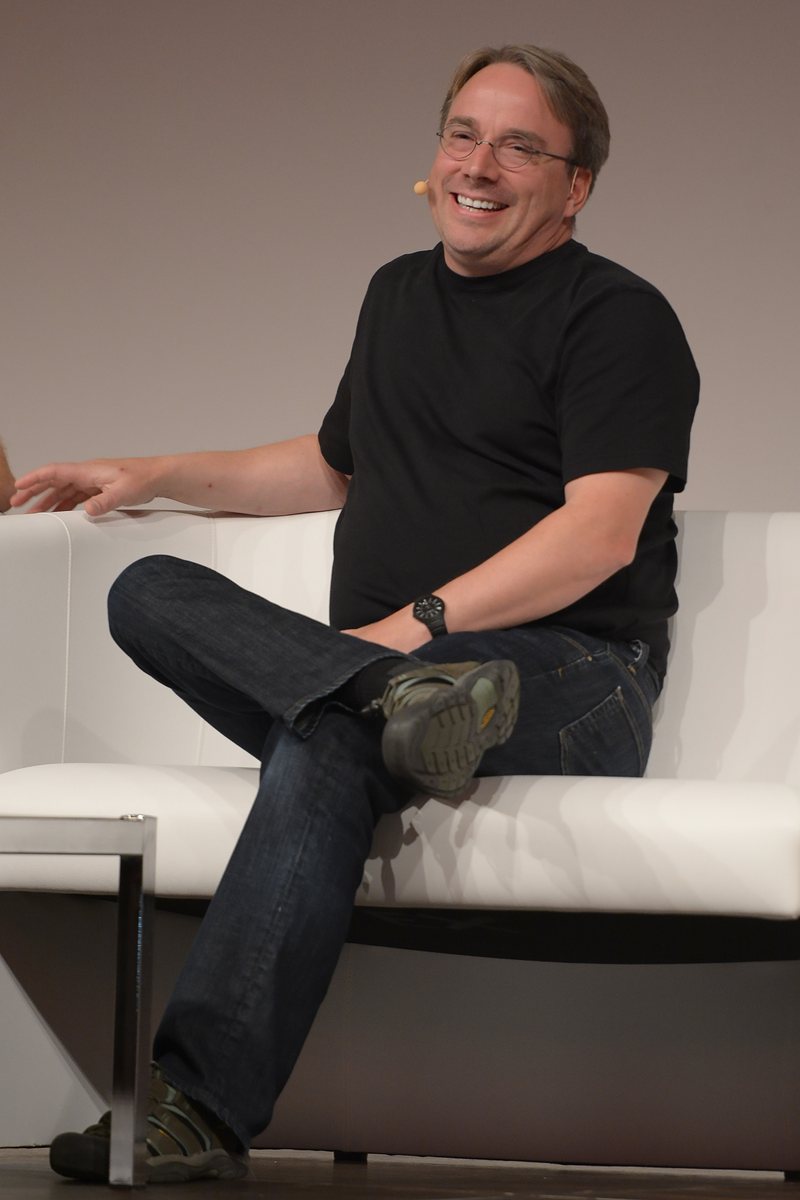
Linus Torvalds, the creator of Linux, wrote Git in two thousand five.
Linus Torvalds created Linux in nineteen ninety-one — and Git in two thousand five, in about ten days.
Linus Torvalds:1991 年创造 Linux,2005 年又用大约十天创造了 Git。Linus Torvalds สร้าง Linux ปี 1991 และสร้าง Git ปี 2005 ในเวลาราวสิบวันPhoto: Krd (LinuxCon Europe 2014) · Wikimedia Commons · CC BY-SA 4.0
How do you save schoolwork without Git? Like this: essay.doc,
essay_final.doc, essay_final_REAL.doc. It is a mess. And you still
cannot see what changed between versions.
想想没有 Git 时你怎么保存作业:essay.doc、essay_final.doc、essay_final_REAL.doc……一团乱,而且你还是看不出版本之间到底改了什么。เซฟงานโดยไม่มี Git เป็นแบบนี้: essay.doc, essay_final.doc, essay_final_REAL.doc… วุ่นวาย แถมยังมองไม่เห็นว่าแต่ละเวอร์ชันแก้อะไรไปบ้าง
Git fixes this with one idea: the commit. A commit is a snapshot of the whole
project. It carries a short message, a time, and your name. The chain of commits is the
project's history. Did you break something today? Go back to yesterday's
commit. Git 用一个想法解决这个问题:commit(提交)。一次 commit 就是整个项目的快照,带一句说明、时间和你的名字。commit 连成链就是项目的历史。今天改坏了?回到昨天的 commit 就行。Git แก้ปัญหานี้ด้วยไอเดียเดียว: commit คือสแนปช็อตของทั้งโปรเจกต์ พร้อมข้อความสั้น เวลา และชื่อคุณ คอมมิตต่อกันเป็นสายคือประวัติของโปรเจกต์ วันนี้ทำพัง? กลับไปคอมมิตของเมื่อวานได้เลย
The three rooms on your computer / 电脑上的三个"房间"/ สามห้องบนคอมพิวเตอร์ของคุณ
Git moves your work through three places. Understanding them is ninety percent of understanding Git.
Git 让你的工作经过三个地方。理解它们,就理解了 Git 的百分之九十。งานของคุณเดินผ่านสามที่ เข้าใจสามที่นี้ ก็เข้าใจ Git ไปเก้าสิบเปอร์เซ็นต์แล้ว
Working directory 工作目录 — the real files you see and edit.
你看得见、改得动的真实文件。ไฟล์จริงที่คุณเห็นและแก้ได้
Staging area 暂存区 — the "shopping basket". git add puts a
change in the basket. Only what is in the basket goes into the next commit.
像"购物篮"。git add 把改动放进篮子。只有篮子里的东西会进入下一次 commit。เหมือนตะกร้า — git add ใส่การแก้ไขลงตะกร้า เฉพาะของในตะกร้าจะเข้าคอมมิตถัดไป
Repository 仓库 — the saved history, inside a hidden .git
folder. git commit moves the basket here, forever.
保存好的历史,藏在隐藏的 .git 文件夹里。git commit 把篮子里的东西永久存进来。ประวัติที่บันทึกแล้ว ซ่อนอยู่ในโฟลเดอร์ .git — git commit เก็บของในตะกร้าเข้ามาอย่างถาวร
There is a fourth room, but it is not on your computer: the remote — the copy
of your repository on GitHub. git push sends your commits up to it;
git pull brings other people's commits down.
还有第四个房间,但不在你电脑上:remote(远程仓库) — 你的仓库在 GitHub 上的那份拷贝。git push 把你的 commit 送上去,git pull 把别人的 commit 拉下来。ยังมีห้องที่สี่ แต่ไม่อยู่บนเครื่องคุณ: remote — สำเนา repo ของคุณบน GitHub ใช้ git push ส่งคอมมิตขึ้นไป และ git pull ดึงคอมมิตของคนอื่นลงมา
Good commit messages / 好的提交说明/ ข้อความคอมมิตที่ดี
A commit message tells your teammates — and future you — what changed, in one short line.
Start with a verb. commit 说明用一行短句告诉队友(和未来的你)改了什么。用动词开头。ข้อความคอมมิตบอกเพื่อนร่วมทีม (และตัวคุณในอนาคต) ในหนึ่งบรรทัดว่าแก้อะไร ขึ้นต้นด้วยกริยา
✅ Add about page with photo✅ Fix broken link on homepage❌ stuff
❌ asdfasdf
❌ final final FINAL v2 (real)
Talk about it · 讨论
Where do you already keep old versions of your work — photos, essays, game saves? What can go wrong with your system?
你现在是怎么保存旧版本的(照片、作文、游戏存档)?你的方法会出什么问题?ตอนนี้คุณเก็บงานเวอร์ชันเก่ายังไง (รูป เรียงความ เซฟเกม)? วิธีของคุณมีจุดอ่อนตรงไหน
Why does Git make you choose files with git add first, instead of just saving everything every time?
为什么 Git 要先用 git add 挑文件,而不是每次自动保存全部?ทำไม Git ให้เลือกไฟล์ด้วย git add ก่อน แทนที่จะเซฟทุกอย่างอัตโนมัติ
A friend's commit message says "changed things". Why is this a problem one month later?
朋友的 commit 说明写着"改了点东西"。一个月后这会造成什么麻烦?เพื่อนเขียนข้อความคอมมิตว่า แก้นิดหน่อย — อีกหนึ่งเดือนจะเกิดปัญหาอะไร
03 · the meeting place
GitHub — where the world shares code
Summary
GitHub is a website that stores Git repositories online. More than one hundred million
developers use it. They share code there, and they review each other's work with pull
requests. It also hosts free websites with GitHub Pages. Git is the tool; GitHub is the
meeting place.
The names look alike, and that is the number one beginner confusion. They are two different
things that work together. 这两个名字很像 — 这是新手最容易混的地方。它们是两个不同的东西,配合使用。สองชื่อนี้คล้ายกันมาก — มือใหม่สับสนบ่อยที่สุด จริง ๆ แล้วเป็นคนละอย่างที่ทำงานร่วมกัน
🔧 Git
A tool on your computer.
装在你电脑上的工具。เครื่องมือบนคอมพิวเตอร์ของคุณ
Tracks every change to your files 记录文件的每次修改บันทึกทุกการแก้ไขไฟล์
Works offline, no internet needed 可以离线用,不需要联网ใช้ออฟไลน์ได้ ไม่ต้องต่อเน็ต
You use it from the terminal 用终端命令操作ใช้ผ่านคำสั่งในเทอร์มินัล
Free and open source, born in 2005 免费开源,2005 年诞生ฟรี โอเพนซอร์ส เกิดปี 2005
🐙 GitHub
A website on the internet.
互联网上的一个网站。เว็บไซต์บนอินเทอร์เน็ต
Founded in 2008, owned by Microsoft 2008 年成立,现属微软ก่อตั้งปี 2008 ปัจจุบันเป็นของ Microsoft
A simple picture: Git is like "Track Changes" in a document editor. But it
watches a whole folder, and it is much stronger. GitHub is like a cloud drive for those
folders. It is also a social network — people check each other's changes before they are
accepted. 打个比方:Git 像文档软件里的"修订记录",但管的是整个文件夹,而且强得多。GitHub 像放这些文件夹的网盘 — 再加一个社交网络,大家在改动被接受之前互相审核。เปรียบง่าย ๆ: Git เหมือน Track Changes ในโปรแกรมเอกสาร แต่ดูทั้งโฟลเดอร์และแรงกว่ามาก GitHub เหมือนคลาวด์ไดรฟ์ของโฟลเดอร์พวกนั้น บวกโซเชียลที่คนรีวิวงานกันก่อนรับเข้า
Why a pull request, even alone? / 一个人也要用 PR?/ อยู่คนเดียวก็ใช้ PR?
On a team, nobody pushes straight to main. You work on a branch.
Then you open a pull request. It says: "Here are my changes. Please review
them, then merge." In this lesson you will do the same thing in your own repository. You will
be both the author and the reviewer. It feels very formal. But real jobs expect exactly this
habit. 在团队里,没有人直接往 main 推代码。大家在分支上工作,然后提 Pull Request:"这是我的改动 — 请审核,然后合并。"这节课你会在自己的仓库里做同样的事:你既是作者又是审核人。看起来有点正式,但这正是真实工作要求的习惯。ในทีม ไม่มีใคร push ตรงเข้า main ทุกคนทำงานบนบรานช์ แล้วเปิด Pull Request: นี่คือการแก้ของฉัน ช่วยรีวิวแล้วค่อย merge — ในบทเรียนนี้คุณจะทำแบบเดียวกันใน repo ของตัวเอง เป็นทั้งผู้เขียนและผู้รีวิว ดูเป็นทางการ แต่งานจริงคาดหวังนิสัยแบบนี้เลย
Talk about it · 讨论
GitHub profiles are public. Why might a company look at your GitHub before an interview?
GitHub 主页是公开的。为什么公司面试前会先看你的 GitHub?หน้า GitHub เป็นสาธารณะ ทำไมบริษัทถึงดู GitHub ของคุณก่อนสัมภาษณ์
What could go wrong if ten people all pushed straight to main on the same day?
如果十个人同一天都直接往 main 推代码,会出什么问题?ถ้าสิบคน push ตรงเข้า main ในวันเดียวกัน จะเกิดอะไรขึ้น
Reviewing your own pull request — is it useful practice, or just for show? Give one reason for each side.
自己审核自己的 PR — 是有用的练习还是走形式?两边各给一个理由。รีวิว PR ของตัวเอง — ฝึกได้จริงหรือแค่พิธี? ให้เหตุผลฝั่งละหนึ่งข้อ
04 · the story
From moon code to a hundred million coders
Summary
People wrote big programs long before Git. Code lived on punched cards and paper printouts,
and sharing it was slow and risky. Git arrived in two thousand five, and GitHub in two
thousand eight. Today almost all new software, and most AI tools, are built on top of them.
Margaret Hamilton, nineteen sixty-nine, beside the printed Apollo flight software — the whole "repository", on paper.
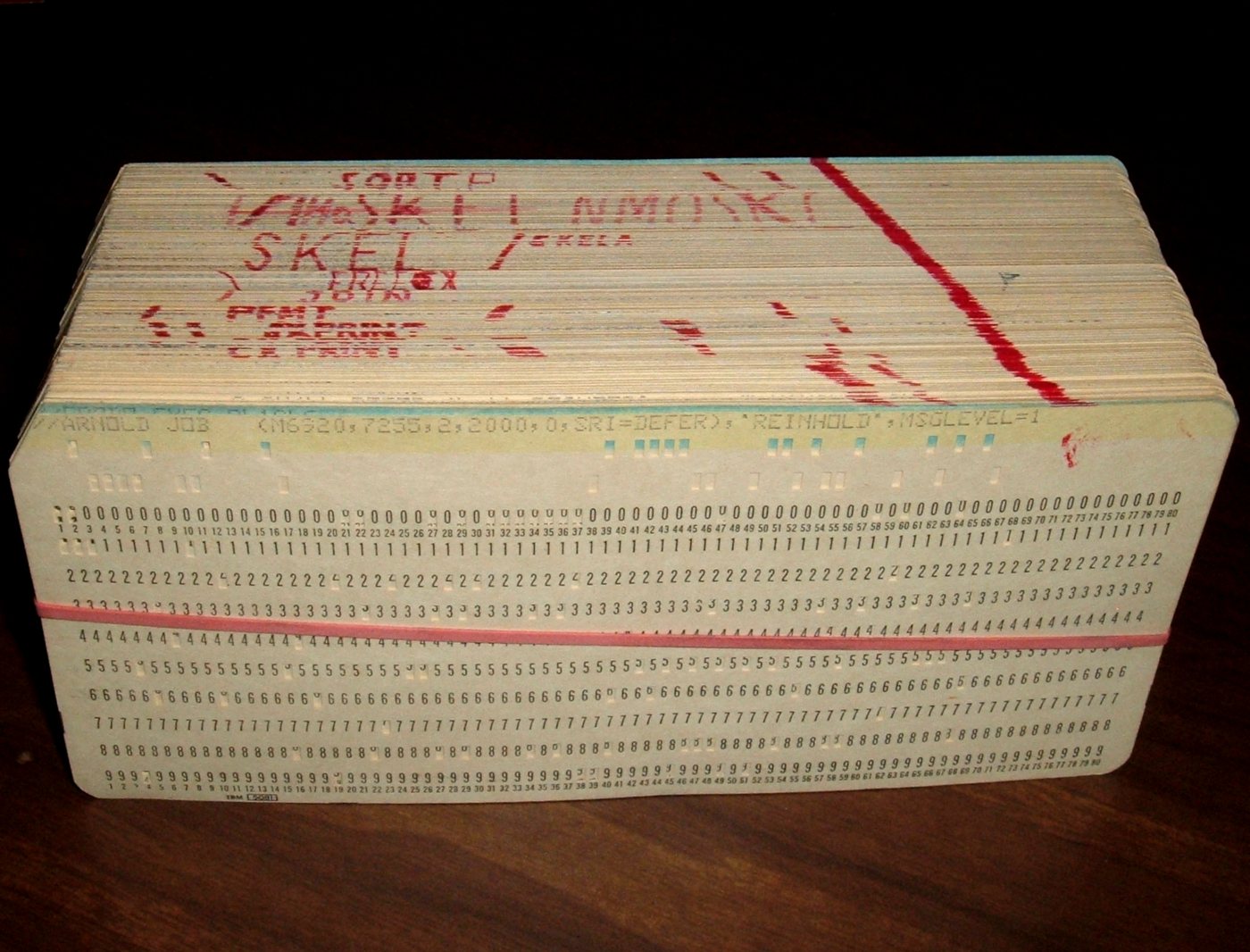
1969 年,Margaret Hamilton 和打印出来的阿波罗飞行软件——整个"仓库",全是纸。Margaret Hamilton ปี 1969 ข้างซอฟต์แวร์อพอลโลที่พิมพ์ออกมา — คลังทั้งชุดเป็นกระดาษPhoto: NASA (restoration: Adam Cuerden) · Public domainOne program, about nineteen sixty-nine: a deck of punched cards. One card is one line of code.
大约 1969 年的一个程序:一叠打孔卡。一张卡 = 一行代码。โปรแกรมหนึ่งตัว ราวปี 1969: บัตรเจาะรูหนึ่งตั้ง หนึ่งใบคือโค้ดหนึ่งบรรทัดPhoto: Arnold Reinhold · Wikimedia Commons · CC BY-SA 3.0
Look at the photos above. It is nineteen sixty-nine. Margaret Hamilton led the MIT team that
wrote the software for the Apollo moon landing. She stands next to the printed listings of that
code — a paper stack as tall as she is. That stack was the repository. The other photo shows
how one program was stored: a box of punched cards. Drop the box, and your program was in the
wrong order.
看上面的照片。那是 1969 年。Margaret Hamilton 带领 MIT 团队写出了阿波罗登月的软件。她身边就是那些代码的打印稿——摞起来和她一样高。那摞纸就是当时的仓库。另一张照片是一个程序的储存方式:一盒打孔卡。盒子掉在地上,程序就乱了。ดูรูปด้านบน นั่นคือปี 1969 Margaret Hamilton นำทีม MIT เขียนซอฟต์แวร์พายานอพอลโลลงจอดบนดวงจันทร์ เธอยืนข้างกองกระดาษพิมพ์โค้ดที่สูงเท่าตัวเธอ กองกระดาษนั้นคือคลังของยุคนั้น อีกรูปคือวิธีเก็บโปรแกรมหนึ่งตัว: กล่องบัตรเจาะรู ทำกล่องหล่น โปรแกรมก็สลับลำดับหมด
For the next thirty years, programmers built better and better version tools — SCCS, RCS,
CVS, Subversion. Each one helped. But they all kept the history on one central computer. If
that computer stopped, everyone's work stopped.
接下来的三十年,程序员做出了一代代版本工具——SCCS、RCS、CVS、Subversion。一代比一代好,但历史都存在一台中央电脑上。那台电脑一停,所有人就得停工。สามสิบปีต่อมา โปรแกรมเมอร์สร้างเครื่องมือเวอร์ชันที่ดีขึ้นเรื่อย ๆ — SCCS, RCS, CVS, Subversion แต่ทุกตัวเก็บประวัติไว้ที่คอมพิวเตอร์กลางเครื่องเดียว เครื่องนั้นหยุด งานทุกคนก็หยุด
In two thousand five, the Linux team suddenly lost the tool they used to share code. Linus
Torvalds — the same person who created Linux — wrote a replacement in about ten days. He called
it Git. It was fast, it worked offline, and every developer kept a full copy of the history.
Within a few years, Git had won.
2005 年,Linux 团队突然失去了他们分享代码的工具。Linus Torvalds——就是创造 Linux 的那个人——用大约十天写出了替代品,取名 Git。它快、能离线用、每个开发者手里都有完整的历史。几年之内,Git 就赢了。ปี 2005 ทีม Linux เสียเครื่องมือแชร์โค้ดที่ใช้อยู่กะทันหัน Linus Torvalds คนเดียวกับที่สร้าง Linux เขียนตัวแทนขึ้นในราวสิบวัน ตั้งชื่อว่า Git มันเร็ว ใช้ออฟไลน์ได้ และนักพัฒนาทุกคนถือประวัติครบชุด ไม่กี่ปี Git ก็ชนะขาด
GitHub opened in two thousand eight and made Git social: a web page for every repository, a
button for every pull request. Microsoft bought it in twenty eighteen for seven and a half
billion dollars. Today GitHub reports more than one hundred million developers. Most
open-source software lives there. Employers read GitHub profiles like CVs. And AI coding tools
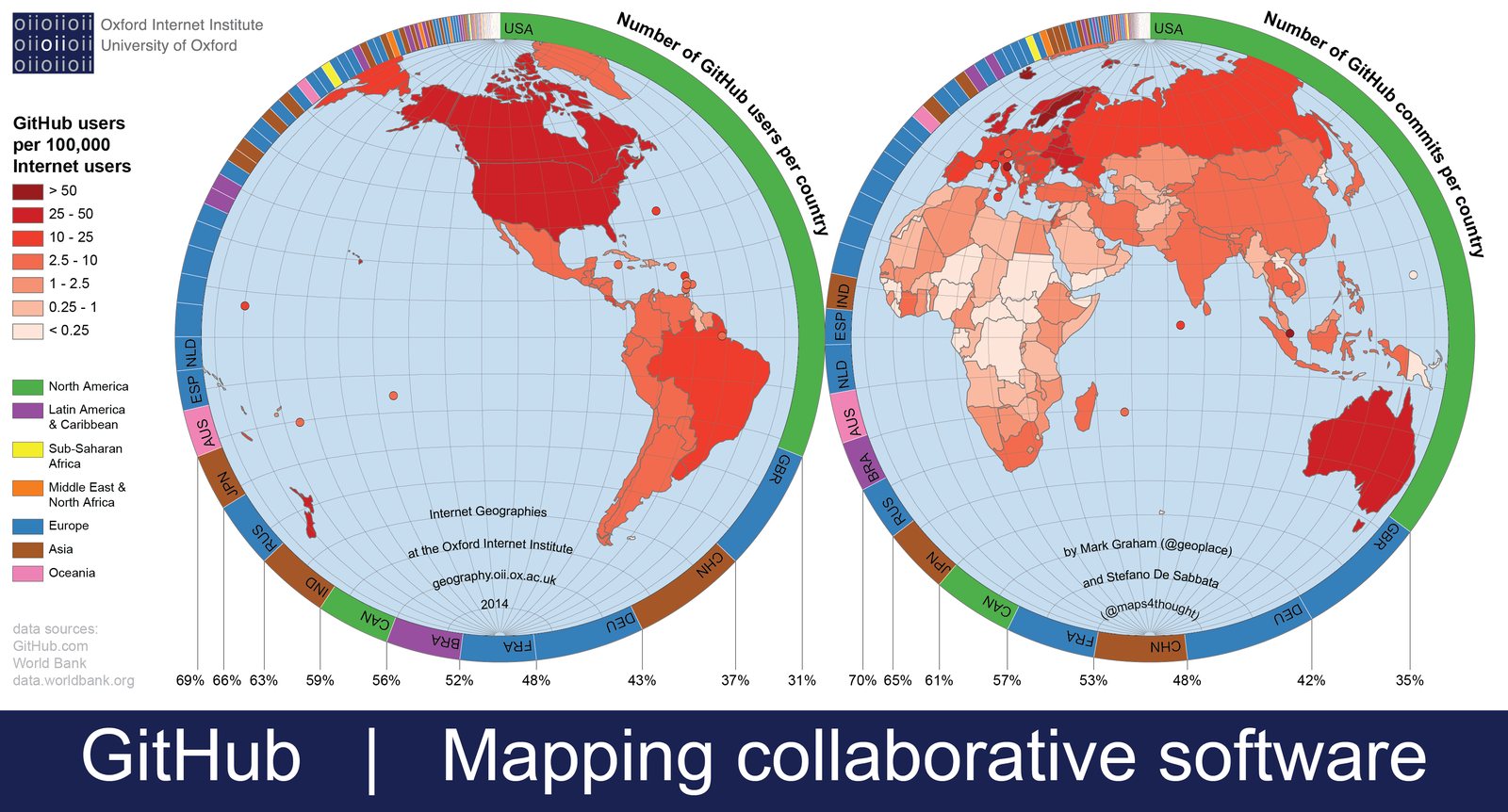
learned much of what they know from its public code. The map below is from twenty fourteen —
the world was already coding together.
GitHub 于 2008 年上线,把 Git 变成了社交网络:每个仓库一个网页,每个合并请求一个按钮。2018 年微软以 75 亿美元收购了它。今天 GitHub 报告有超过一亿开发者。大多数开源软件都放在上面。招聘方像看简历一样看 GitHub 主页。AI 编程工具学到的东西,很多来自它的公开代码。下面的地图来自 2014 年——那时全世界就已经在一起写代码了。GitHub เปิดตัวปี 2008 ทำให้ Git กลายเป็นโซเชียล: ทุก repo มีหน้าเว็บ ทุก pull request มีปุ่ม ปี 2018 Microsoft ซื้อไปในราคา 7.5 พันล้านดอลลาร์ วันนี้ GitHub รายงานว่ามีนักพัฒนากว่าหนึ่งร้อยล้านคน โอเพนซอร์สส่วนใหญ่อยู่ที่นั่น บริษัทอ่านโปรไฟล์ GitHub เหมือนอ่านเรซูเม่ และเครื่องมือ AI เขียนโค้ดก็เรียนรู้จากโค้ดสาธารณะบนนั้น แผนที่ด้านล่างมาจากปี 2014 — โลกเขียนโค้ดด้วยกันมานานแล้ว
GitHub users around the world in twenty fourteen, mapped by the Oxford Internet Institute. Darker red means more coders per person.
2014 年全球 GitHub 用户地图(牛津互联网研究院绘制)。红色越深,人均程序员越多。แผนที่ผู้ใช้ GitHub ทั่วโลกปี 2014 โดย Oxford Internet Institute — สีแดงยิ่งเข้ม สัดส่วนคนเขียนโค้ดยิ่งสูงMap: Mark Graham & Stefano De Sabbata, Oxford Internet Institute · CC BY-SA 4.0
Talk about it · 讨论
The Apollo code was a paper stack. Name two problems paper has that Git does not.
阿波罗的代码是一摞纸。说出纸有而 Git 没有的两个问题。โค้ดอพอลโลคือกองกระดาษ บอกปัญหาของกระดาษสองอย่างที่ Git ไม่มี
Git gives every developer a full copy of the history. Why did that beat the
one-central-computer tools?
Git 让每个开发者都有完整的历史拷贝。为什么这打败了"一台中央电脑"式的工具?Git ให้นักพัฒนาทุกคนถือประวัติครบชุด ทำไมแบบนี้ถึงชนะเครื่องมือแบบคอมพิวเตอร์กลาง
AI coding tools learned from public GitHub code. Is that fair to the people who wrote
the code? Give one reason for each side.
AI 编程工具从 GitHub 的公开代码里学习。这对写代码的人公平吗?两边各给一个理由。เครื่องมือ AI เรียนจากโค้ดสาธารณะบน GitHub ยุติธรรมกับคนเขียนโค้ดไหม ให้เหตุผลฝั่งละหนึ่งข้อ
05 · the console
Practice here first — nothing can break
Summary
This console is a safe copy of the tools you will soon use for real. It has five benches:
the four rooms, the branch machine, a working terminal, a pull request, and the journey of a
web page. Play with each one until the commands feel natural.
Press the buttons in a good order. Watch
index.html travel through the four rooms. Wrong order? The bench shows you
what Git would say. 按合理的顺序点按钮,看 index.html 怎么走过四个房间。顺序错了?工作台会告诉你 Git 会怎么说。กดปุ่มตามลำดับที่ถูก ดู index.html เดินผ่านสี่ห้อง กดผิดลำดับ? โต๊ะจะบอกว่า Git จะพูดว่าอะไร
Start by editing the file. 先点"编辑文件"开始。เริ่มจากกดแก้ไขไฟล์ก่อน
Build the exact history you will create in Mission C: commit on
main, branch off, commit on the branch, merge back.
搭出你在任务 C 里会真正创建的历史:在 main 上提交 → 开分支 → 在分支上提交 → 合并回来。สร้างประวัติชุดเดียวกับที่คุณจะทำจริงในภารกิจ C: คอมมิตบน main → แตกบรานช์ → คอมมิตบนบรานช์ → merge กลับ
One commit, c1, already exists. Make another on main.
已经有一个提交 c1 了。先在 main 上再提交一次。มีคอมมิต c1 อยู่แล้ว คอมมิตบน main อีกครั้งก่อน
This simulated terminal really works. Type real Git commands, or press
the buttons. It remembers files, branches, and commits — so git status always
tells the truth. 一个可用的模拟终端。可以自己输入真实的 Git 命令,也可以点按钮。它会记住文件、分支和提交 — git status 永远说实话。เทอร์มินัลจำลองที่ใช้ได้จริง พิมพ์คำสั่ง Git จริง หรือกดปุ่มก็ได้ มันจำไฟล์ บรานช์ และคอมมิต — git status พูดความจริงเสมอ
student@laptop — bash
student:~/my-site$
This is what a pull request looks like on GitHub. You will see this
screen for real in Mission C. Try the three buttons.
这就是 GitHub 上 Pull Request 的样子。任务 C 里你会真的见到这个界面。试试三个按钮。นี่คือหน้าตา Pull Request บน GitHub คุณจะเจอหน้าจอนี้จริงในภารกิจ C ลองกดสามปุ่มดู
✓ Pull request merged / 已合并 — 分支的改动进入了 main / บรานช์ถูกรวมเข้า main แล้ว
Add about page #1
● Openopened by you · just now
add-about→main
Adds about.html with a short introduction, and links to it
from the homepage. 新增 about.html(一段自我介绍),并从主页加了链接。เพิ่ม about.html (แนะนำตัวสั้น ๆ) และลิงก์จากหน้าแรก
2 files changed · +21-1
📄 about.html +19-0
📄 index.html +2-1
Drag the slider. Follow one page request from a friend's browser to
your repository and back. GitHub Pages does this every time someone visits your site.
拖动滑块:跟着一次页面请求,从朋友的浏览器一路走到你的仓库,再走回来。每次有人访问你的网站,GitHub Pages 就在做这件事。ลากสไลเดอร์ ตามคำขอหนึ่งครั้งจากเบราว์เซอร์ของเพื่อนไปถึง repo ของคุณแล้วกลับมา — GitHub Pages ทำแบบนี้ทุกครั้งที่มีคนเข้าเว็บคุณ
Your friend types the address and presses Enter.
朋友输入网址,按下回车。เพื่อนพิมพ์ที่อยู่เว็บ แล้วกด Enter
Talk about it · 讨论
On the four-rooms bench, what happened when you tried to commit before adding? Why does Git refuse?
在"四个房间"里,先 commit 不先 add 会怎样?Git 为什么拒绝?ในโต๊ะสี่ห้อง ถ้า commit ก่อน add จะเกิดอะไร ทำไม Git ถึงปฏิเสธ
In the terminal, what is the difference between what git log shows and what git status shows?
终端里,git log 和 git status 显示的东西有什么不同?ในเทอร์มินัล git log กับ git status แสดงต่างกันอย่างไร
The Pages bench shows a friend loading your site. Where does the file actually live?
"到浏览器"工作台显示朋友打开你的网站。文件实际上存在哪里?โต๊ะไปเบราว์เซอร์แสดงว่าเพื่อนเปิดเว็บคุณ แล้วไฟล์จริง ๆ อยู่ที่ไหน
06 · mission, part A · in the browser
Get your site live
Summary
Four steps, all in the browser, about fifteen minutes. Create a GitHub account, create one
special repository, add one file called index dot html, and turn on GitHub Pages. Your website
will be live at your username dot github dot io.
1Create a GitHub account / 注册 GitHub 账号/ สมัครบัญชี GitHub
Go to github.com/signup. 打开 github.com/signup。เปิด github.com/signup
Enter your email, a password, and a username.
输入邮箱、密码和用户名。กรอกอีเมล รหัสผ่าน และชื่อผู้ใช้
Verify the code GitHub emails you, and choose the Free plan.
填好邮件里的验证码,选择免费方案。ยืนยันรหัสจากอีเมล แล้วเลือกแผนฟรี
Choose the username with care. It becomes your web address. Username
liming → website liming.github.io. Short, clean, no jokes you will
regret. 用户名要认真选 — 它就是你的网址。用户名 liming → 网站 liming.github.io。要短、要干净、别开以后会后悔的玩笑。เลือกชื่อผู้ใช้ให้ดี — มันคือที่อยู่เว็บของคุณ ชื่อ liming → เว็บ liming.github.io เอาสั้น สะอาด อย่าเล่นมุกที่จะเสียใจทีหลัง
2Create the special repository / 建那个特殊的仓库/ สร้าง repo พิเศษตัวนั้น
Click the + at the top right → New repository.
点右上角的 + → New repository。กดเครื่องหมาย + มุมขวาบน → New repository
Repository name: username.github.io — your real username, exactly.
仓库名填 你的用户名.github.io — 必须和用户名一模一样。ตั้งชื่อ repo ว่า ชื่อผู้ใช้.github.io — ต้องตรงกับชื่อผู้ใช้เป๊ะ
Keep it Public. Free GitHub Pages needs a public repository.
保持 Public(公开)。免费的 GitHub Pages 只能用公开仓库。ตั้งเป็น Public — Pages ฟรีใช้ได้กับ repo สาธารณะเท่านั้น
Tick "Add a README file", then Create repository.
勾选 "Add a README file",点 Create repository。ติ๊ก Add a README file แล้วกด Create repository
The name is a magic word. GitHub turns a repository with this exact
name — username.github.io — into your main website. If you spell it
wrong, Pages cannot find it. 这个名字是"暗号":只有叫 用户名.github.io 的仓库,GitHub 才会用根网址来服务它。拼错了 Pages 就找不到。ชื่อนี้คือรหัสลับ: GitHub จะเปลี่ยน repo ที่ชื่อ ชื่อผู้ใช้.github.io เป็นเว็บหลักของคุณ สะกดผิด Pages หาไม่เจอ
3Add your homepage / 加上主页文件/ เพิ่มไฟล์หน้าแรก
In the repository, click Add file → Create new file.
在仓库页面点 Add file → Create new file。ในหน้า repo กด Add file → Create new file
Name it exactly index.html — the home page of every website.
文件名必须是 index.html — 每个网站的首页。ต้องตั้งชื่อว่า index.html — หน้าแรกของทุกเว็บไซต์
Paste this code, then press the green Commit changes button. That button
is a real Git commit — your first one.
粘贴下面的代码,然后点绿色的 Commit changes 按钮。那个按钮就是一次真正的 Git 提交 — 你的第一次。วางโค้ดด้านล่าง แล้วกดปุ่มเขียว Commit changes — ปุ่มนั้นคือคอมมิตจริงครั้งแรกของคุณ
<!DOCTYPE html>
<html lang="en">
<head>
  <meta charset="UTF-8">
  <title>My First Website</title>
</head>
<body>
  <h1>Hello, World!</h1>
  <p>This is my website. I built it myself.</p>
  <p>这是我的网站,我自己做的。</p>
  <p>นี่คือเว็บไซต์ของฉัน ฉันทำเอง</p>
</body>
</html>
In the repository, open Settings → Pages (left menu).
在仓库里打开 Settings → 左边菜单的 Pages。ใน repo เปิด Settings → เมนูซ้าย Pages
Under "Branch", choose main and / (root), then
Save. "Branch" 选 main 和 /(root),点 Save。ตรง Branch เลือก main กับ /(root) แล้วกด Save
Wait one or two minutes, refresh, and look for the green box.
等一两分钟,刷新页面,找绿色提示框。รอหนึ่งถึงสองนาที รีเฟรช แล้วมองหากล่องเขียว
What you should see: "Your site is live at
https://username.github.io". Open it. Send it to a friend. That is a real
website on the real internet. 你应该看到:"Your site is live at https://你的用户名.github.io"。打开它,发给朋友 — 这是真互联网上的真网站。คุณจะเห็น: Your site is live at https://ชื่อผู้ใช้.github.io — เปิดดู ส่งให้เพื่อน นี่คือเว็บจริงบนอินเทอร์เน็ตจริง
Talk about it · 讨论
Why must the file be called index.html and not myhomepage.html?
为什么文件必须叫 index.html,不能叫 myhomepage.html?ทำไมไฟล์ต้องชื่อ index.html จะใช้ชื่อ myhomepage.html ไม่ได้เหรอ
The repository is public. What should never go into a public repository?
仓库是公开的。什么东西绝对不能放进公开仓库?repo เป็นสาธารณะ อะไรที่ห้ามใส่ใน repo สาธารณะเด็ดขาด
You committed through a web form. Which Git rooms did GitHub walk through for you?
你是在网页表单里 commit 的。GitHub 替你走过了哪些"房间"?คุณคอมมิตผ่านฟอร์มบนเว็บ GitHub เดินผ่านห้องไหนแทนคุณบ้าง
07 · mission, part B · the command line
Update it like a professional
Summary
Editing files on the GitHub website is fine for one file. Real developers work on their own
computer. Install Git, tell it your name, clone your repository, and then run the daily cycle:
edit, status, add, commit, push. Two minutes after the push, your live site shows the change.
Open a terminal: on Windows install
git-scm.com and use
Git Bash; on macOS run git --version in Terminal and accept the
install; on Linux use sudo apt install git.
打开终端:Windows 从 git-scm.com 安装并使用 Git Bash;macOS 在终端运行 git --version 并同意安装;Linux 用 sudo apt install git。เปิดเทอร์มินัล: Windows ติดตั้งจาก git-scm.com แล้วใช้ Git Bash · macOS รัน git --version ใน Terminal แล้วกดติดตั้ง · Linux ใช้ sudo apt install git
# check it works
# 检查装好没
# เช็กว่าติดตั้งสำเร็จ
git --version

# once per computer — use your GitHub email!
# 每台电脑一次 — 邮箱要和 GitHub 一致!
# ตั้งครั้งเดียวต่อเครื่อง — ใช้อีเมลเดียวกับบัญชี GitHub!
git config --global user.name "Your Name"
git config --global user.email "you@example.com"
Why the introduction? Every commit is signed with this name and
email. That is how history says who changed what.
为什么要自报家门?每次 commit 都会签上这个名字和邮箱 — 历史就是这样记录"谁改了什么"的。ทำไมต้องแนะนำตัว? ทุกคอมมิตจะเซ็นชื่อและอีเมลนี้ ประวัติจึงบอกได้ว่าใครแก้อะไร
2Clone your repository / 克隆你的仓库/ โคลน repo ของคุณ
# download your repo — replace username with yours
# 把仓库下载下来 — 换成你的用户名
# ดาวน์โหลด repo ของคุณ — เปลี่ยน username เป็นของคุณเอง
git clone https://github.com/username/username.github.io.git
cd username.github.io
ls
What you should see:ls lists index.html and
README.md. The hidden .git folder is there too — the whole history
came with it. ls 会列出 index.html 和 README.md。隐藏的 .git 文件夹也在 — 整个历史都跟着下来了。ls จะเห็น index.html กับ README.md โฟลเดอร์ซ่อน .git ก็มาด้วย — ประวัติทั้งหมดตามมาครบ
3Edit, then walk the four rooms / 修改,然后走一遍四个房间/ แก้ไข แล้วเดินสี่ห้องให้ครบ
Open index.html in any editor (VS Code, or even
Notepad). Change the heading. Add a sentence about yourself. Save. Then:
用任何编辑器(VS Code,记事本也行)打开 index.html。改标题,加一句自我介绍,保存。然后:เปิด index.html ด้วยโปรแกรมแก้ไขอะไรก็ได้ (VS Code หรือ Notepad) แก้หัวข้อ เพิ่มประโยคแนะนำตัว เซฟ แล้ว:
# 1 · which room is the change in?
# 1 · 改动在哪个房间?
# 1 · การแก้ไขอยู่ห้องไหน?
git status

# 2 · working dir → staging
# 2 · 工作目录 → 暂存区
# 2 · โฟลเดอร์ทำงาน → พื้นที่พัก
git add index.html

# 3 · staging → repository, with a message
# 3 · 暂存区 → 仓库,带上说明
# 3 · พื้นที่พัก → คลัง พร้อมข้อความ
git commit -m "Update homepage with my introduction"

# 4 · repository → GitHub
# 4 · 仓库 → GitHub
# 4 · คลัง → GitHub
git push
First push? A window opens asking you to sign in to GitHub. Sign in
once — your computer remembers after that. 第一次 push 会弹出窗口让你登录 GitHub。登录一次,以后电脑会记住。push ครั้งแรกจะมีหน้าต่างให้ล็อกอิน GitHub ล็อกอินครั้งเดียว เครื่องจะจำไว้
What you should see: the push prints a summary ending in
main -> main. Wait a minute or two, refresh
username.github.io — your change is live.
push 会打印一段以 main -> main 结尾的摘要。等一两分钟,刷新你的网站 — 改动上线了。push จะพิมพ์สรุปลงท้ายด้วย main -> main รอหนึ่งถึงสองนาที รีเฟรชเว็บ — การแก้ของคุณออนไลน์แล้ว
Talk about it · 讨论
Run git status before and after git add. What changed in the message?
在 git add 前后各跑一次 git status,输出有什么变化?รัน git status ก่อนและหลัง git add ข้อความเปลี่ยนไปอย่างไร
You commit but forget to push. What does the website show? Who has your change?
你 commit 了但忘了 push。网站显示什么?你的改动在谁手里?คุณ commit แต่ลืม push เว็บแสดงอะไร แล้วการแก้ของคุณอยู่ที่ใคร
Why is the web editor fine for one file but painful for a real project?
为什么网页编辑器改一个文件还行,做真项目就很痛苦?ทำไมแก้ไฟล์เดียวบนเว็บยังไหว แต่ทำโปรเจกต์จริงแล้วลำบากมาก
08 · mission, part C · branch → pull request
Your first pull request
Summary
Now the professional move. Create a branch and build an about page on it. Push the branch,
and open a pull request on GitHub. Review your own changes, merge, and pull the result back
down. Every serious software team on Earth works this way.
# make a new branch AND move onto it
# 新建分支并切换过去
# สร้างบรานช์ใหม่และย้ายไปที่นั่นทันที
git switch -c add-about

# prove it
# 确认一下
# พิสูจน์ดู
git branch
What you should see:git branch lists two branches, with a
star on * add-about. Everything you commit now lands on this branch —
main stays safe. git branch 会列出两个分支,星号在 * add-about 上。现在你提交的一切都进这个分支 — main 安然无恙。git branch จะแสดงสองบรานช์ มีดาวอยู่ที่ * add-about จากนี้ทุกคอมมิตเข้าบรานช์นี้ — main ปลอดภัย
2Build the new page / 做新页面/ ทำหน้าใหม่
Create a new file about.html next to
index.html: 在 index.html 旁边新建 about.html:สร้างไฟล์ใหม่ about.html ไว้ข้าง ๆ index.html:
<!DOCTYPE html>
<html lang="en">
<head>
  <meta charset="UTF-8">
  <title>About Me</title>
</head>
<body>
  <h1>About Me</h1>
  <p>My name is ____. I am learning Git, and this page arrived by pull request.</p>
  <p>我叫 ____。我在学 Git — 这个页面是通过 Pull Request 上线的。</p>
  <p>ฉันชื่อ ____ กำลังเรียน Git — หน้านี้มาถึงโดย Pull Request</p>
  <a href="index.html">← Back home</a>
</body>
</html>
And add one line inside the <body> of
index.html so people can find it:
再在 index.html 的 body 里加一行链接,让别人找得到它:แล้วเพิ่มลิงก์หนึ่งบรรทัดใน body ของ index.html ให้คนหาเจอ:
<a href="about.html">About me · 关于我 · เกี่ยวกับฉัน</a>
git status
git add .
git commit -m "Add about page and link from homepage"
3Push the branch / 把分支推上去/ พุชบรานช์ขึ้นไป
# -u connects your branch to GitHub the first time
# 第一次推送用 -u 把分支和 GitHub 连起来
# ครั้งแรกใช้ -u เพื่อผูกบรานช์ของคุณกับ GitHub
git push -u origin add-about
What you should see: the output includes a link —
"Create a pull request for add-about". GitHub saw your branch arrive.
输出里会有一个链接:"Create a pull request for add-about"。GitHub 已经看到你的分支了。ผลลัพธ์จะมีลิงก์ Create a pull request for add-about — GitHub เห็นบรานช์ของคุณแล้ว
Open your repository on github.com. A yellow banner says
"add-about had recent pushes — Compare & pull request". Click it.
打开你的仓库页面,黄色横幅写着 "add-about had recent pushes — Compare & pull request",点它。เปิดหน้า repo จะมีแถบเหลืองเขียนว่า add-about had recent pushes — Compare & pull request กดเลย
Check the direction: base: main ← compare: add-about.
确认方向:base: main ← compare: add-about。เช็กทิศทาง: base: main ← compare: add-about
Write a title and one sentence about what you changed, then
Create pull request.
写标题和一句改动说明,点 Create pull request。เขียนหัวข้อกับคำอธิบายหนึ่งประโยค แล้วกด Create pull request
5Review it — yes, really / 认真审核它/ รีวิวมันจริงจัง
Open the Files changed tab. Read your own diff: green lines are added,
red lines are removed. 打开 Files changed 标签页,读自己的 diff:绿色是新增的行,红色是删掉的行。เปิดแท็บ Files changed อ่าน diff ของตัวเอง: สีเขียวคือบรรทัดที่เพิ่ม สีแดงคือบรรทัดที่ลบ
Ask the reviewer questions: Is the file name right? Did I break the homepage? Would a
stranger understand my commit message?
问自己审核者的问题:文件名对吗?主页有没有被我弄坏?陌生人能看懂我的提交说明吗?ถามตัวเองแบบผู้รีวิว: ชื่อไฟล์ถูกไหม หน้าแรกพังหรือเปล่า คนแปลกหน้าอ่านข้อความคอมมิตแล้วเข้าใจไหม
6Merge, then sync back down / 合并,然后同步回来/ merge แล้วซิงก์กลับ
Press Merge pull request → Confirm merge. The purple badge means your
branch is now part of main.
点 Merge pull request → Confirm merge。紫色徽章表示你的分支已经进入 main。กด Merge pull request → Confirm merge ป้ายม่วงแปลว่าบรานช์เข้าสู่ main แล้ว
Press Delete branch — its work is done.
点 Delete branch — 它的任务完成了。กด Delete branch — หน้าที่ของมันจบแล้ว
# back on your computer: return to main and pull the merge down
# 回到电脑:切回 main,把合并结果拉下来
# กลับมาที่เครื่องคุณ: สลับไป main แล้วดึงผลการ merge ลงมา
git switch main
git pull
What you should see: in a minute or two,
username.github.io/about.html is live, and the homepage links to it.
Mission complete — tick the last box at the top of this page.
一两分钟后,你的网站多了 about.html,主页也有了链接。任务完成 — 回到页面顶部,把最后一个勾打上。อีกหนึ่งถึงสองนาที เว็บคุณจะมี about.html และหน้าแรกมีลิงก์ ภารกิจสำเร็จ — กลับไปติ๊กช่องสุดท้ายด้านบนสุด
Talk about it · 讨论
What would have happened to your live site if the about page had a mistake — before the merge?
如果 about 页面有错误,在合并之前,你的线上网站会怎样?ถ้าหน้า about มีข้อผิดพลาด ก่อน merge เว็บจริงของคุณเป็นอย่างไร
You reviewed your own diff. Name one thing a second person would catch that you might not.
你审核了自己的 diff。第二个人能发现、而你可能发现不了的问题,举一个。คุณรีวิว diff ตัวเองแล้ว ยกตัวอย่างปัญหาหนึ่งอย่างที่คนที่สองจะเห็นแต่คุณอาจมองข้าม
Why delete the branch after merging? What is lost, and what is kept?
合并后为什么要删分支?删掉的是什么,留下的是什么?merge แล้วทำไมต้องลบบรานช์ อะไรหายไป และอะไรยังอยู่
09 · checkpoint
Check yourself
Summary
Five questions, then the road ahead. Did you finish the mission? Then you now know the
real daily workflow of a working programmer: pull, branch, edit, add, commit, push, pull
request, merge. Everything else in Git grows from this loop.
Make the site yours: real CSS, photos, more pages — every change is another branch → PR rep.
把网站做成你自己的:加 CSS、照片、更多页面 — 每次改动都是一次"分支 → PR"的练习。ทำเว็บให้เป็นของคุณ: ใส่ CSS รูปภาพ หน้าเพิ่ม — ทุกการแก้คือการซ้อม บรานช์ → PR อีกหนึ่งรอบ
Custom domain for about ten dollars a year: 免费建网站, Path C.
想要自己的域名(约 10 美元一年):看"免费建网站"的路径 C。อยากได้โดเมนของตัวเอง (ราวปีละสิบดอลลาร์) ดู Path C ของบทเรียนสร้างเว็บฟรี
Better HTML for those new pages: 网页基础.
想把新页面写得更好:看"网页基础"。อยากเขียนหน้าเว็บให้เก่งขึ้น ดูบทเรียนพื้นฐานเว็บ